Docs / Nebula Sound System manual / 4. The Timeline (arrangement)
4. The Timeline (arrangement)
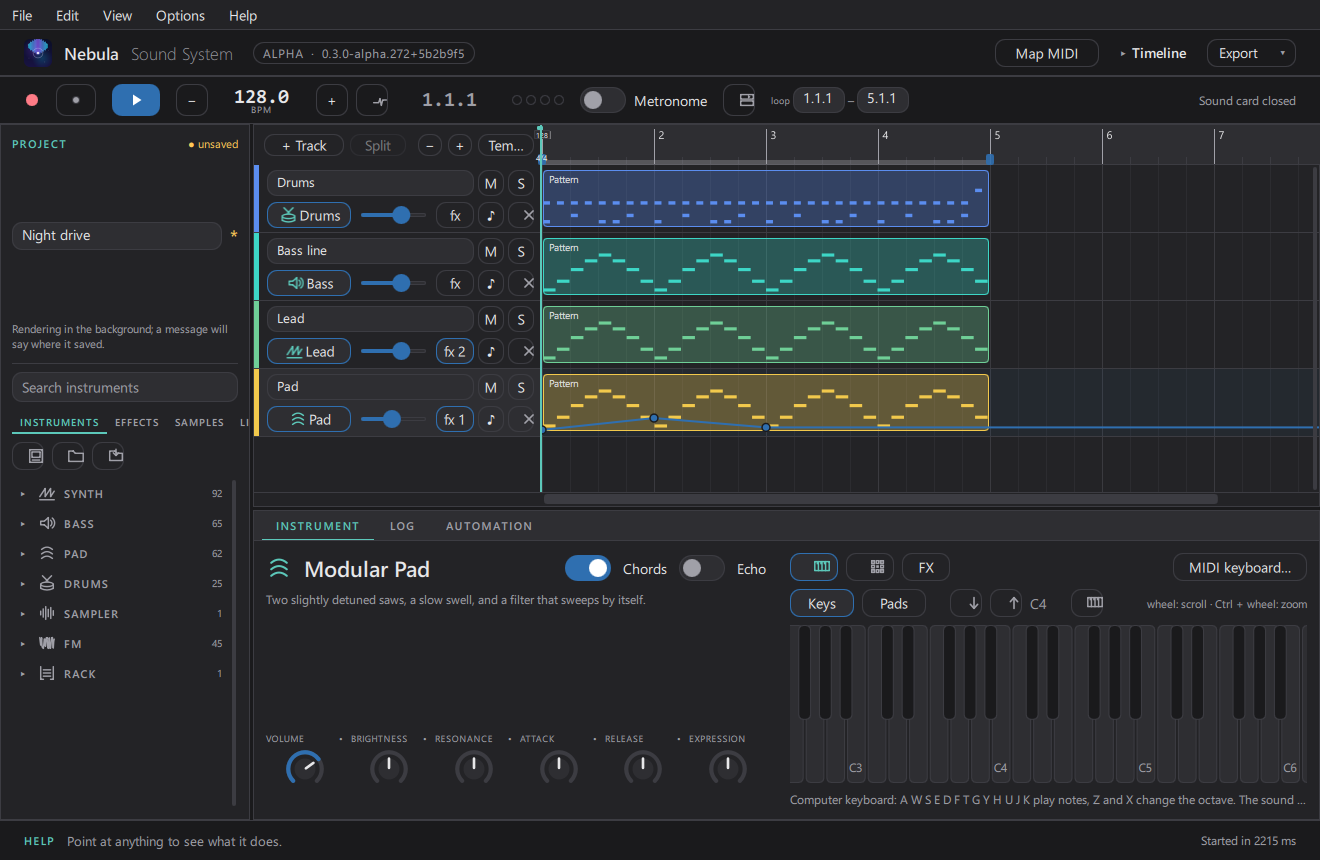
- Add a track:
Ctrl+T(MIDI) orCtrl+Shift+T(audio). - Add a clip: double-click an empty slot on a track, or use the track's own menu.
- Move / resize clips: drag the body / drag the right edge.
- Split at the playhead:
Ctrl+E. Consolidate the selection:Ctrl+J. - Zoom:
Ctrl+=,Ctrl+-,Ctrl+0to fit. - Right-click a clip for its menu (duplicate, quantise, delete, …).
- The small buttons on each track: M mute, S solo, volume, fx (open its device chain), record-arm.
Editing notes
Double-click a MIDI clip to open the piano roll in the bottom panel. There:
- B = draw notes, Esc = select, Q = quantise the selection.
- Drag a note to move it, drag its right edge to lengthen, and use the grid selector for the snap.
Audio tracks
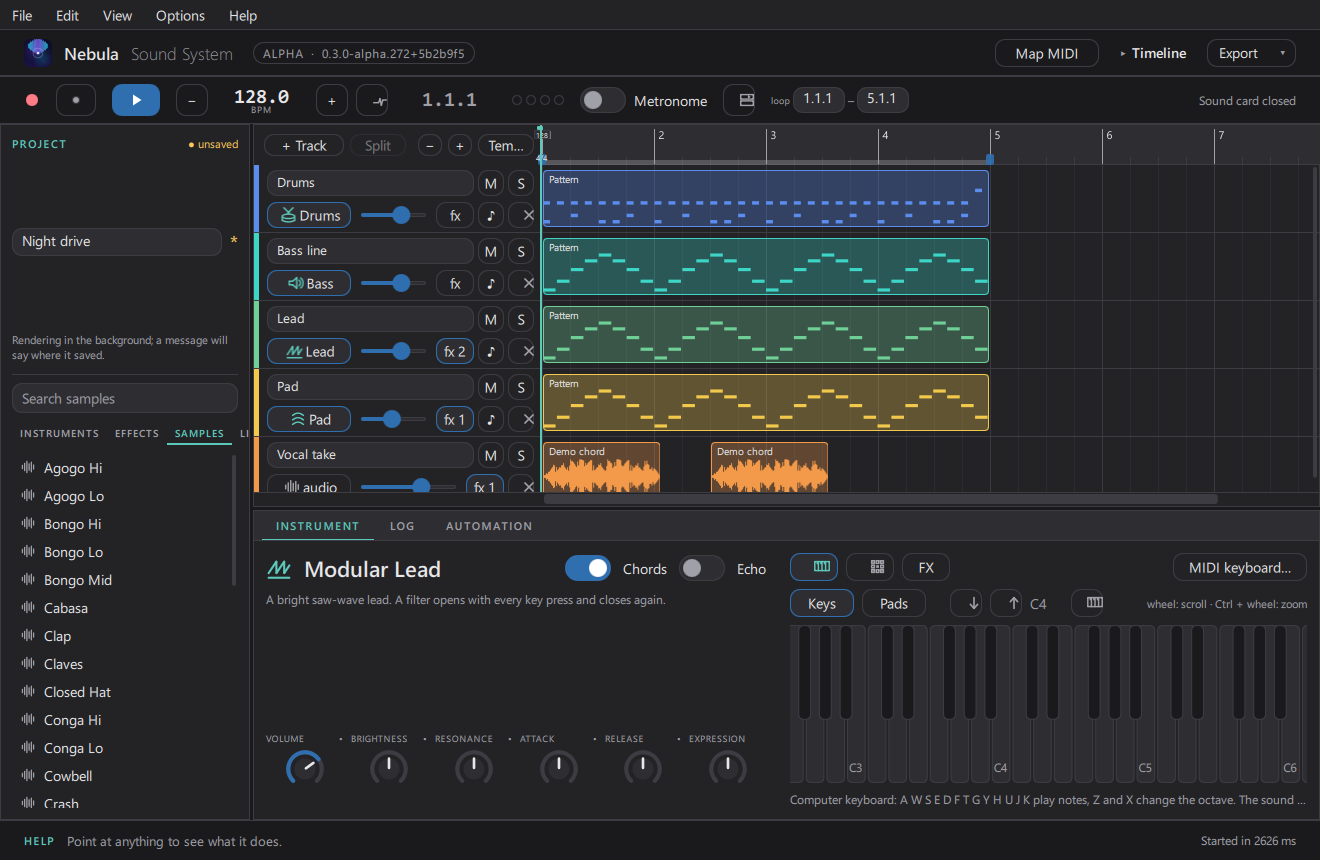
An audio track holds recorded or imported sound. Add one with Ctrl+Shift+T, then drag a WAV onto
it, or arm the track (Ctrl+Shift+R) and record from your input (§11).
Updated 2026-11-02