Docs / Nebula Sound System manual / 2. The window
2. The window
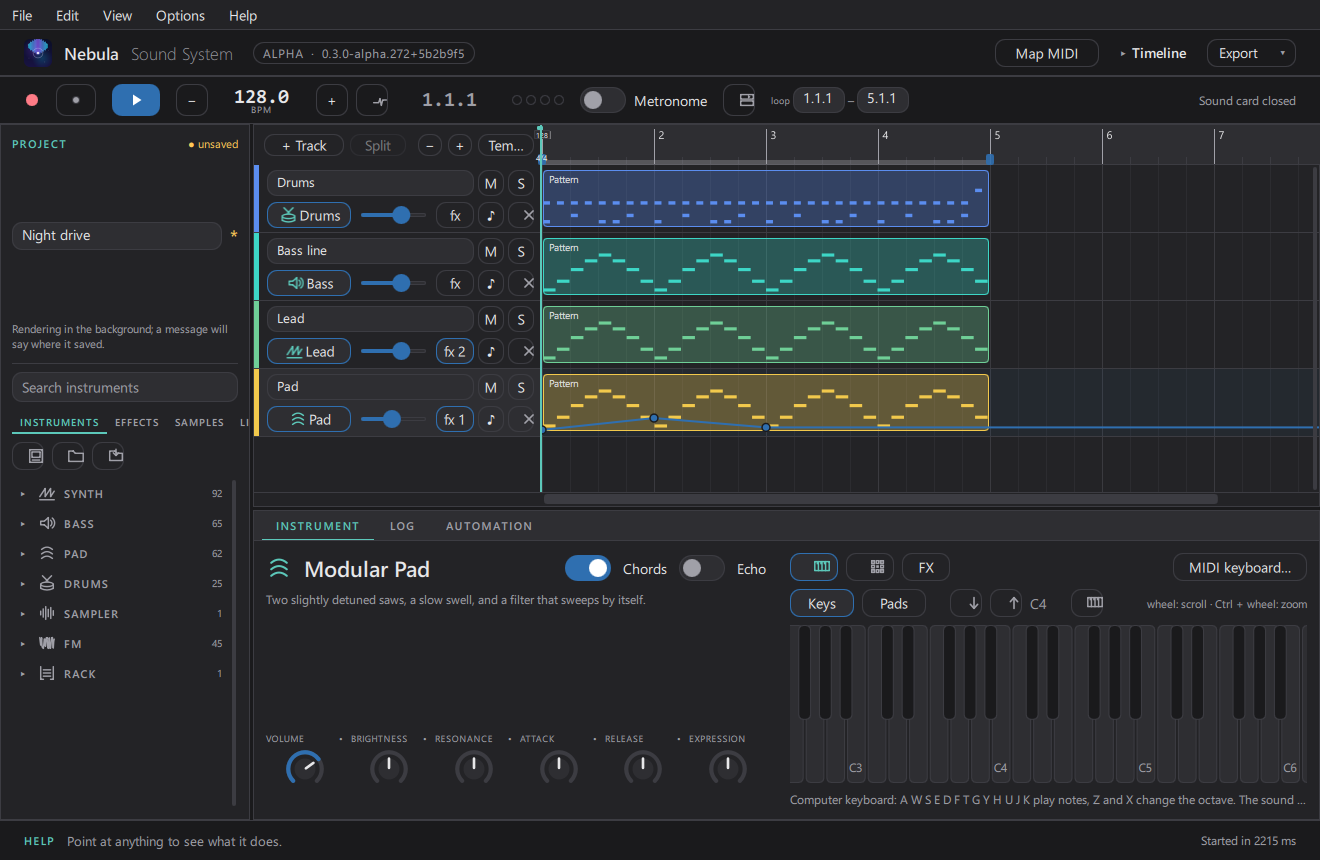
A tour in motion (the video above cycles the real screens: Timeline → Clip Launcher → Mixer → Drum Rack → device chain → command palette → Node view, with a song rendered by Nebula underneath). A note on how these are made: the pictures and GIFs in this manual are the app's own renders — its window output cannot be screen-recorded in every environment (see §19), so the "video" is a tour of real screens rather than a live capture.
| Area | What it is |
|---|---|
| Top bar | Menus (File, Edit, View, Options, Help), the transport, tempo, the metronome, and the view buttons |
| Left panel | The browser: instruments, effects, samples, the Content Library, your projects |
| Middle | The current view: Timeline, Clip Launcher, Mixer or Node |
| Bottom panel | The detail cards for whatever is selected: instrument, devices/FX, note effects, analyser, mastering, automation, log |
| Bottom strip | The help line ("point at anything to see what it does") and the startup time |
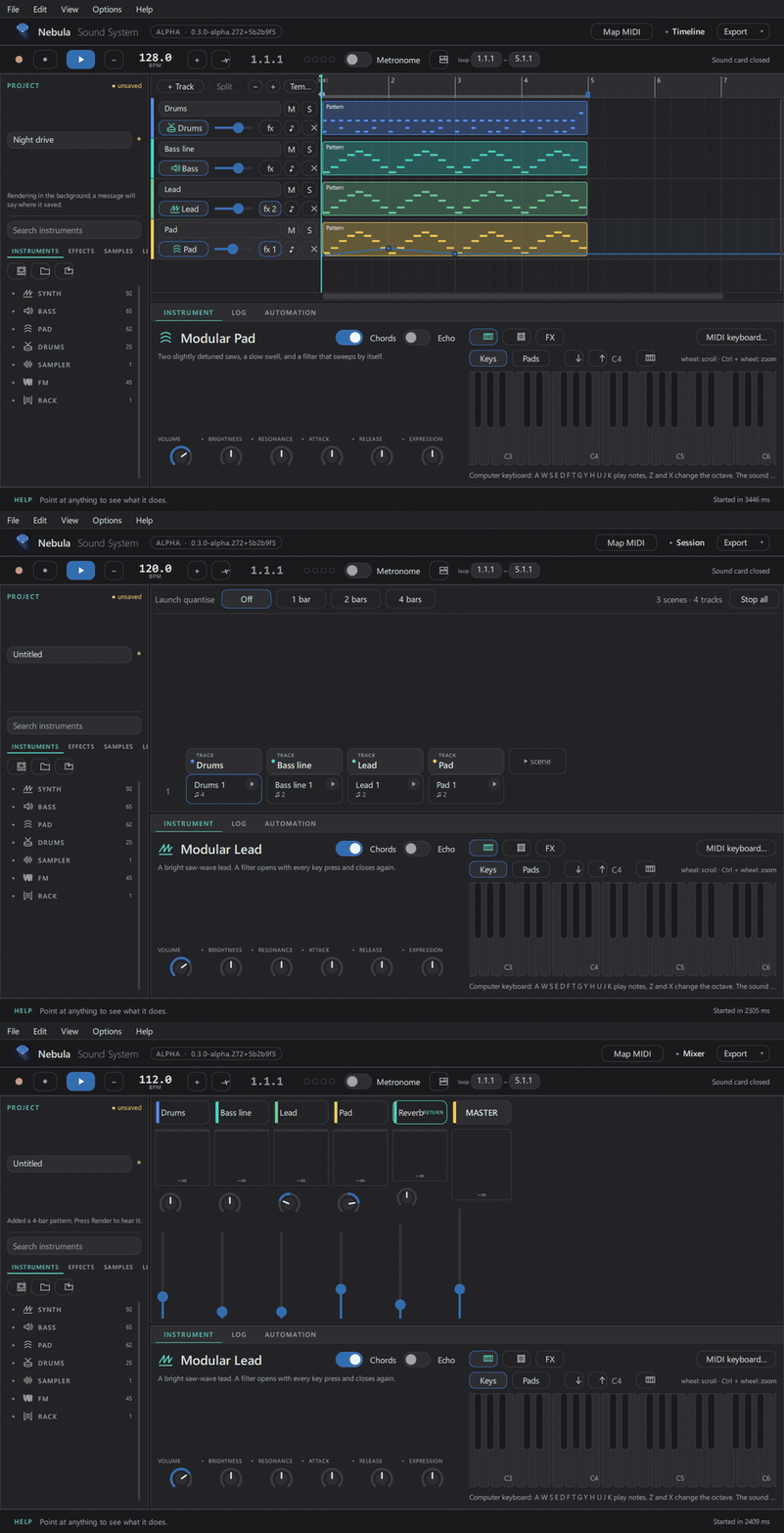
Every control has a help line: hover it and the bottom strip explains it. If something is ever unclear, that is the fastest answer.
Updated 2026-11-02